Assist in Student Career Preparation
Assist students with resume development, cover letters, and support them in identifying career goals and understand workforce expectations.
Click here to learn how to add documents to a student's profile
Businesses
The Businesses database provides a record of each employer and externship provider your institution has contacted. The Business Database has many filter options so you can narrow down the types of businesses you’re looking for. Each business can be assigned to a Career Services Advisor if needed. It houses the following for each employer:
- Location and Phone number
- Academic Programs associated with the business
- Names and numbers of contacts at the business
- Students previously assigned to externships at that site
- Students employed at that site
- A complete record of all communication with the employer and your institution
Search for a Business
Click here to learn - How to Search the Business Bank
How to Add a New Business to the Data Base
Click here to add a new business to the VIAS Database
How to Add a Employment to a Student Account
A job is added to a student after the student has graduated from your school. Jobs are associated with a business in the Business Database.
Click here to learn how to add employment
VIAS recommends to wait for Employment to be verified before adding employment information. The Employment report will list each Job Classification on the report individually.
You also need to enter one of the following Job Classifications for the student:
- InField
- Field Related
- Active
- Unavailable-Continuing Ed
- Unavailable-Death
- Unavailable-Incarcerated
- Unavailable-Medical
- Unavailable-Military
- Click Save. The Job has now been saved to the Student.
- Be sure to enter the Post Verification Date for the student once completed.
Career Service members take notes about businesses to counsel students about further employment opportunities. The CS member may make note of how much the starting salary is at a business, how many future employment opportunities may be coming up in the future, or specific certifications a student may need to have an employment opportunity at the business. CS members can take notes directly on the business page.
Click here to learn how to add a note to the business
Employment
VIAS holds a record of students’ employment.
The Employment Tab
The Employment Tab is a complete listing of all student employment records recorded by your school. You can filter this list by business or program.
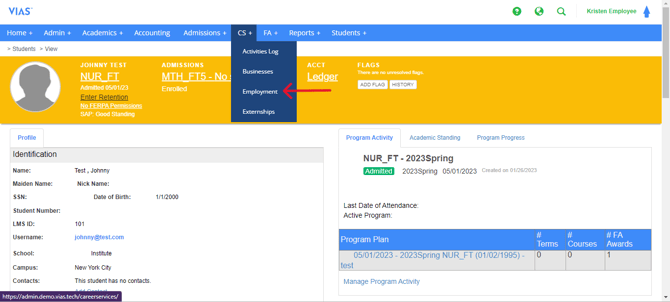
1. Go to CS > Click on Employment.
2. Select school.
3. Search to see a list of every student that has recorded employment. You can also search be business or job title.
How to Add a Job from the Employment Tab
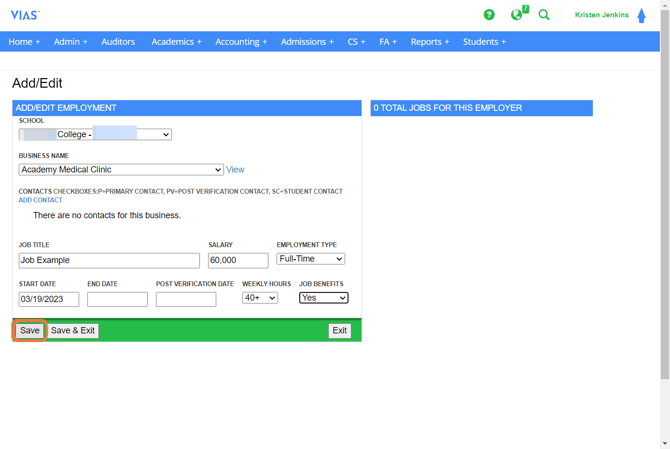
- Click Add Job in the far right corner.
- Choose the school or campus.
- Choose a business name from the business bank or add the business by clicking add.
- Type in the student’s job title and salary.
- Choose the employment type: Full time, Part time, or Self Employed.
- Type in the student’s start date of employment.
- Later the employment can be updated and add the end date of the employment.
- Also, later the updated date of when the employment verification took place can be added.
- Choose the weekly hours range using the drop down menu.
- Choose if the student has job benefits with the employer: yes, no, or unknown
- Click Save.
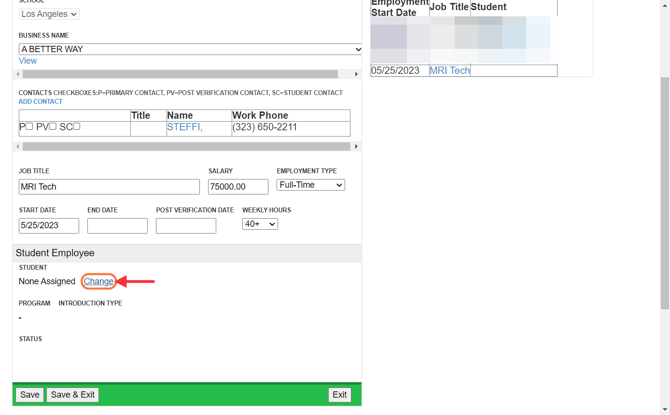
Once the employment position has been created, you are ready to assign the position to the student. Underneath the job information is a section titled “Student Employee.” This is where you will assign the student to the position. Over to the right you see the position you created for this business.
12. Click the work Change next to None Assigned.
13. Type in the student’s whole or partial name first and last name. VIAS lists the results within a blue box with the students’ names, programs, admit terms, and last program action.
14. Click on the student’s name you are documenting employment. VIAS will add the student’s name under the name header.
15. Choose the job classification:- employed
- employed verified - employment is verified by letter or phone call
- related - The Student is employed in a related field related to the graduating program.
- active - The student is actively looking for employment.
- available - The Student is available for employment but not currently employed at the business.
- unavailable due to continuing education, death, incarcerated, medical, or military.
16. Add Notes about the employment if needed.
17. Click Save.
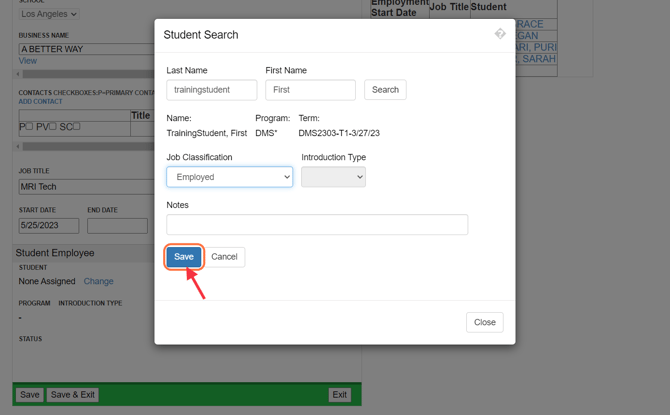
The student’s employment is documented on the business page within the employment tab and on the student’s profile employment tab.
Viewing/Editing Employment on the Student’s Profile
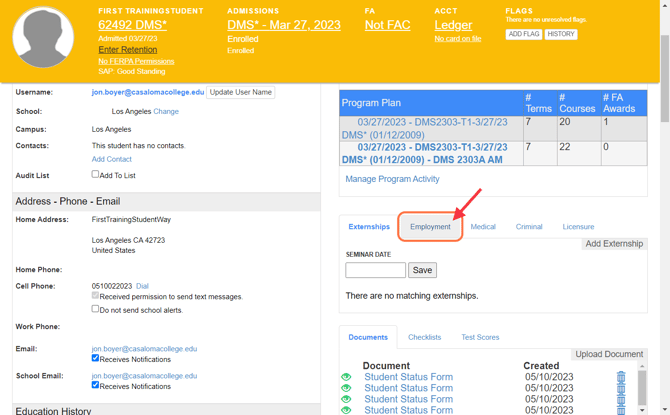
Click here to view or edit employment information from the student profile.
Adding or Editing Contact Information for the Student’s Employment
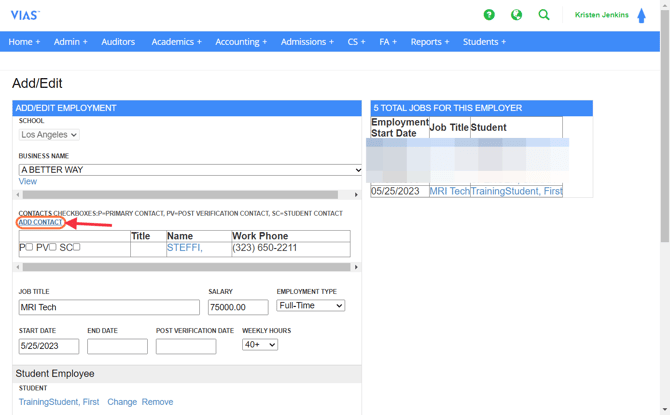
Click here to edit employer contact information
The Employment Report
The Employment Report provides employment data for students with graduation dates in a specified time frame. You can filter this report to look at all students at the school or by program. This report will also give you the employment ratio for the group selected.
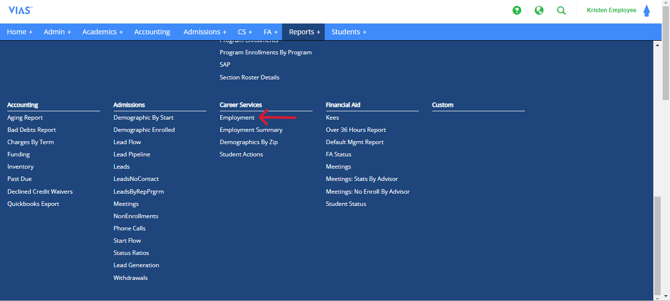
Click here to learn about the employment report
The Employment report can be used for mass communication for career service representatives. See section of the Employment Report labeled, " Communication using the Employment Report." Representatives can use communication templates within this mass communication with grad students.
Click here to learn how to create email/text templates to use in mass communications.
Automated Communication Templates
Career Service Representatives can ask his/her institution's super user/department head to create automated email or text templates when a student graduates. As soon as the registrar adds the graduate program action, an email or text can be sent to students giving students next steps after graduation and completing CS requirements.
Click here to learn how to create automated templates
Licensure
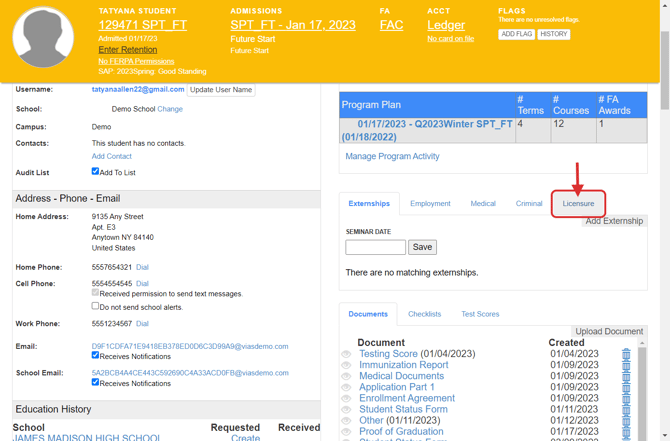
Click here to learn How to add licensure information
Licensure Report
The Licensure exam dates and the date of licensure are recorded on each student’s profile under the licensure tab. These entries drive the licensure report so the user can quickly see licensure rates for a particular program in a given date range. The date range includes those entries of both the exam and licensure date.
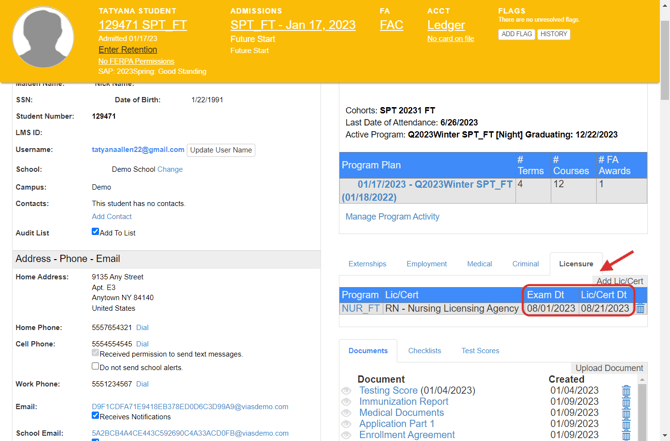
Click here to learn about the licensure report