
- Navigate to a Student Profile
- Scroll to the section labeled Education History under student services.
- User will be able to access history and any documents that have been uploaded (transcript, diploma, etc)
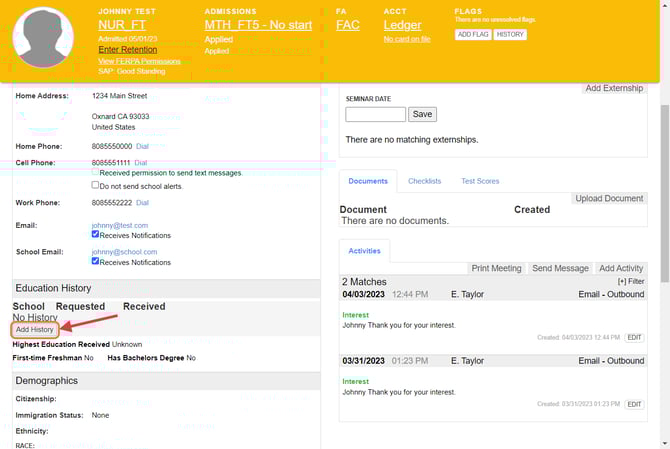
Educational History and IPEDS Reporting
Educational history data within the student profile feeds directly into VIAS IPEDS reporting. It is important that these fields are completed accurately to ensure correct reporting outcomes.
The IPEDS Admitted Report pulls information from two areas of the student profile:
-
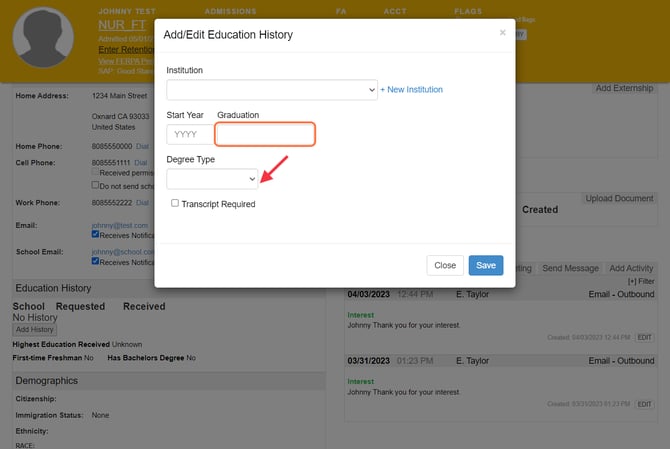
Highest Level of Education is retrieved from the Admissions filter within the student profile.
-
High School Graduation Date is retrieved from the Educational History section within the Student Services filter of the student profile.
Because the IPEDS report relies on these fields, institutions should ensure that both the highest education level and the high school graduation date are properly entered and maintained in the student record. Missing or incomplete data in these areas will result in incomplete IPEDS reporting
How to Add Educational History
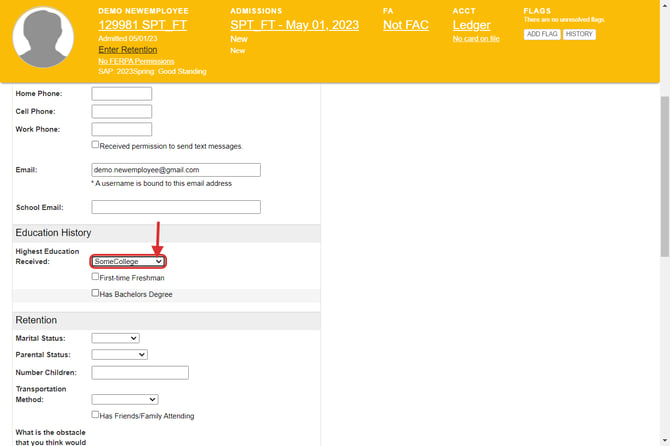
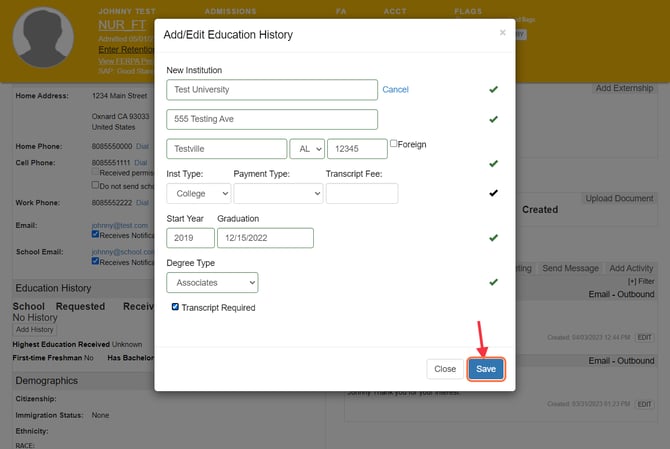
1. Click on Add History under Educational History.
2. Click on Institution - the drop down menu will display your school's institution bank. If the student's school is not listed within the bank, you will need to add a new institution. Click here to learn how to add an institution to your institution bank.
3. Add the school information.
4. Payment type and transcript fee are not required fields. These are just record keeping if needed.
5. Type the start year the student began the institution.
6. Graduation: Type in the graduation date or the date the student stop attending the institution.
7. Choose the degree type.
8. If the transcript is required and not received from the institution, click in the transcript required box to create a check mark.
9. Click Save.
Transcript Request Tracking
Once Educational History has been entered for a student, transcript request information can be added to the record.
To track transcripts, enter the Transcript Requested Date when the request is made. If a Transcript Received Date has not yet been entered, the system will recognize the transcript as outstanding. This allows Student Services to quickly identify students who still have missing transcripts.
Transcript request data also feeds directly into the Missing Transcripts widget on the dashboard, providing a centralized view for staff to monitor outstanding transcript requests and follow up as needed.
For accurate tracking and reporting, be sure to update the Transcript Received Date once the transcript has been received.


Once the student's transcript is received, click the Transcript Requested Date field to enter the Transcript Received Date reflecting the date your institution received the transcript. After entering the received date, upload the transcript within the Educational History section of the student record.
Uploaded transcripts will also be accessible within the student’s Documents tab, allowing staff to easily locate and review the file when needed.

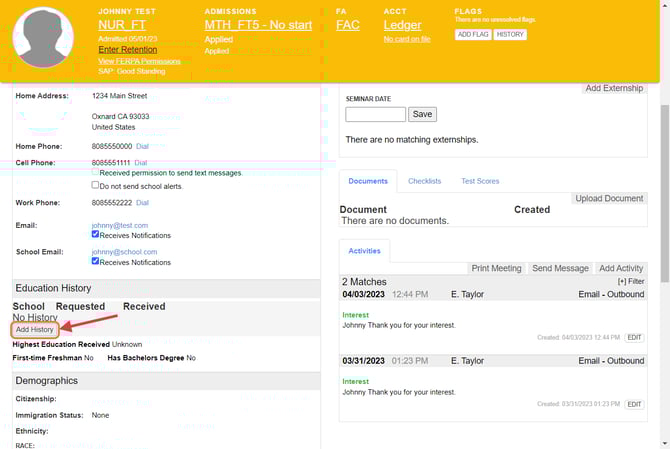
A student's complete record of educational history should appear like this example for all educational history reporting for best practice use within VIAS.
