
Student Profile
Accessing and Posting Transactions to Student Ledgers
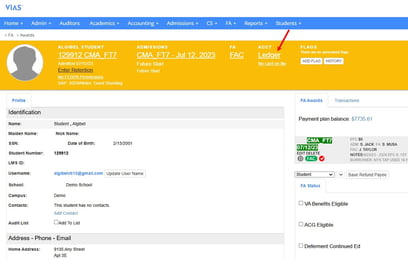
- There are 2 ways to access a student's ledger
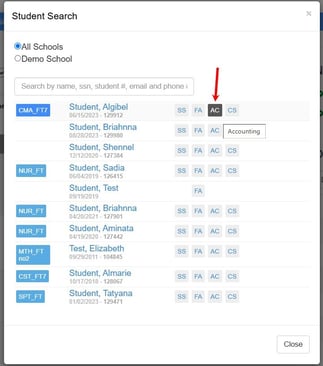
- Clicking on 'AC' in the search function
- Clicking on 'Ledger' at the top of a student profile
- Clicking on 'AC' in the search function
- Click Here: How to Access Student Ledgers
- Click Here: How to Post a Transaction
- Click Here: How to Void a Posted Transaction
- Click Here: How to Remove Anticipated Transactions From a Ledger
Creating, Sending & Managing Payment Plans
- Payment plans can be created within the student profile. Once a payment plan is created, a workflow can be sent to the student's primary email address on file.
- Payment Plans will automatically appear on the student's ledger and portal.
- Click Here: How to Create Payment Plans
- Click Here: How to View Payment Plans
- Click Here: How to Process Payment Plans
- Note: An Authorize.Net account is required
Notes, Activities and the Flag system
- Award Letter Notes - Notes can be added to an Award Letter at any time. These notes will be visible to all users who view the Award Letter. Additionally, Award Letter Notes will also appear on the printed copy of the Award Letter that is given to students.
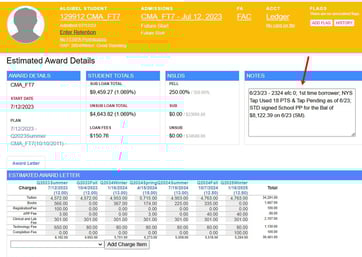
- Activities - Numerous activities can be documented on the student profile.
- Flags - Flags may be added to a student's profile to designate important tasks the student must complete. Depending on the flag type, some may restrict a student’s access to certain functions of their portal, prompting them to complete their tasks quickly.
- Click Here: How to Add a Flag to a Student Profile
Viewing a Students Enrollment
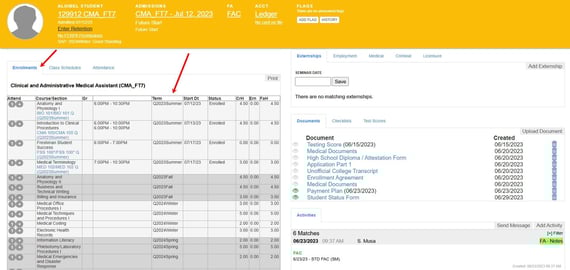
- The enrollment grid is located on the student's profile
- The enrollment grid displays all of the students currently enrolled courses, future enrollments, and completed credits
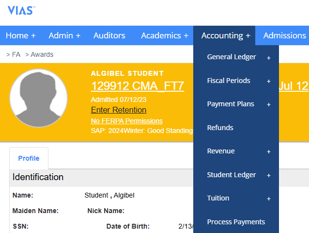
Accounting Tab
-
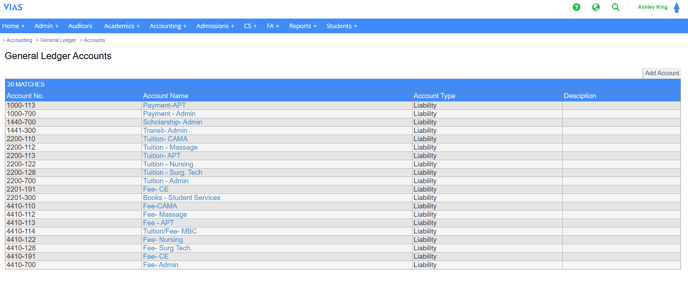
General Ledger
- Accounting > General Ledger > Accounts
- This is where General Ledger accounts can be added and managed
-
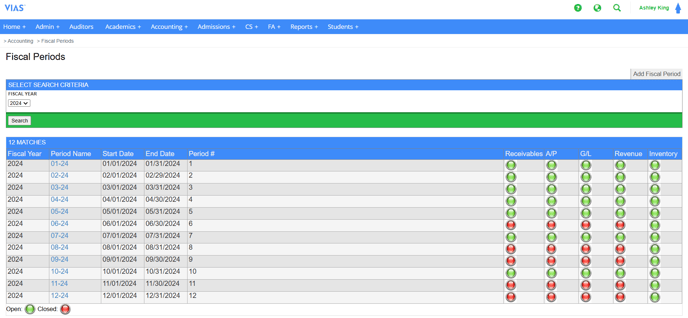
Fiscal Periods
- Fiscal Periods can be closed to lock out the month; no transactions can be posted within that period.
- Click Here: Fiscal Periods
-
Payment Plans
- Accounting > Payment Plans
- Search within a timeframe; batch payments
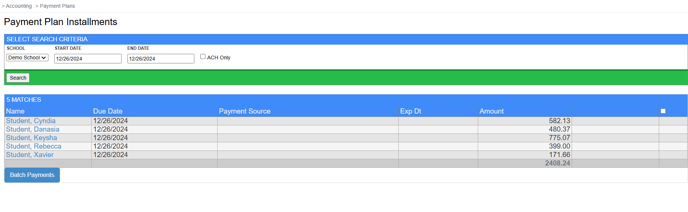
- Search within a timeframe; batch payments
- Accounting > Payment Plans > Student Statements
- Student statement batch download
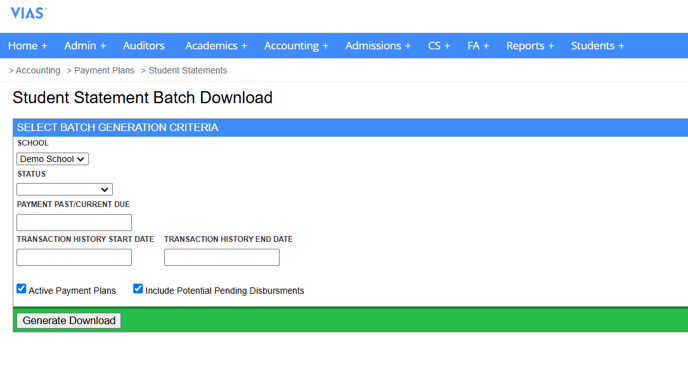
- Student statement batch download
- Accounting > Payment Plans
-
Refunds
- Refunds can be batch-processed and printed here
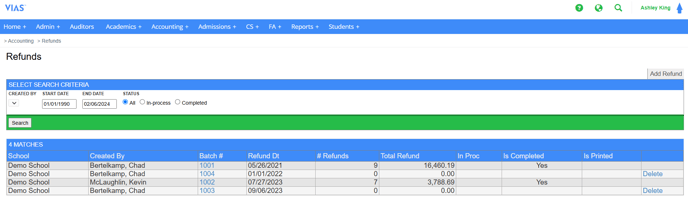
- Refunds can be batch-processed and printed here
-
Revenue
- Revenue can be run based on Clock Hours (Per clock hour, Per Diem or Monthly) or Credit Hours (Per Diem or Monthly)
- Click Here: Revenue
- Accounting > Revenue > Revenue Ledger
- Shows revenue within a timeframe per student
- Accounting > Revenue > Monthly Summary
- Shows revenue for the month
- Accounting > Revenue > Revenue Ledger
-
Student Ledgers
- All Transactions
- Accounting > Student Ledgers > All Transactions Report
- Click Here: All Transactions Report
- The All Transactions Report shows (but is not limited to) transactions by:
- Transaction Type
- Student Group
- Program Start Date
- Timeframe
- Anticipated only
- Actual only
- Student Status
- Balances
- Accounting > Student Ledgers > Balances
- Click Here: How to Access Ledger Balances
- Ledger Balances
- Accounting > Student Ledgers > Ledger Balances
- Click Here: How to Access Ledger Balances
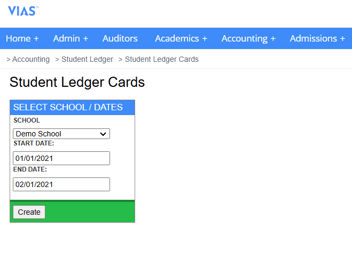
- Ledger Cards
- Accounting > Student Ledgers > Student Ledger Cards
- This is where users can batch-print student ledger cards for a date range. Input the date range and click 'create'. The report will auto-populate a PDF file of all ledger cards within that date range.
- Student Transactions
- Accounting > Student Ledgers > Student Transactions
- Search Students by Student ID, Last Name, First Name, or SSN
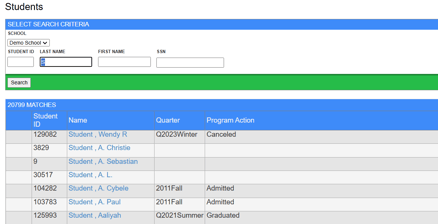
- Transaction Types
- Accounting > Student Ledgers > Transaction Types
- Click Here: How to Create or Modify Transaction Types
- Upload Transactions
- Accounting > Student Ledgers > Upload Transactions
- Click Here: How to Batch Upload Transactions
-
Tuition
- Accounting > Tuition > Process Tuition
- Batch process tuition for each term
- Click Here: How to Charge Tuition
-
Process Payments
- Click Here: How to Process Payment Plans
-
-
- Authorize.Net account required
-
Accounting Reports
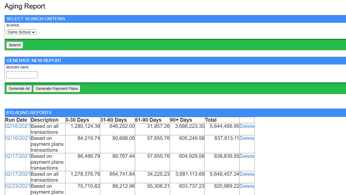
Aging Report
- Aging out of debt, 2 types (30/60/90 days):
- Payment Plan Balances
- All Balances
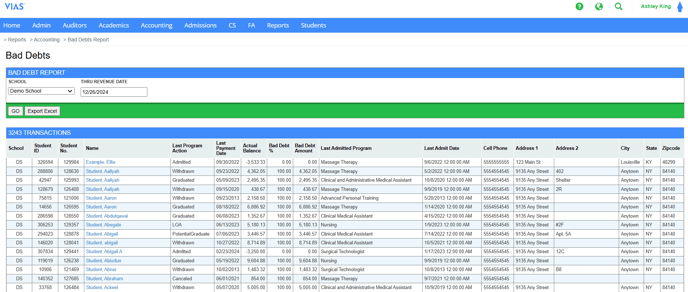
Bad Debts Report
- Used for tax purposes and shows the balance as of today (or date input)
Past Due Report (PDR)
- The PDR Report pulls all students who have past due funding on their ledger )at least 1 week past due)
- Reports > Accounting > Past Due
- Click Here: Past Due Report