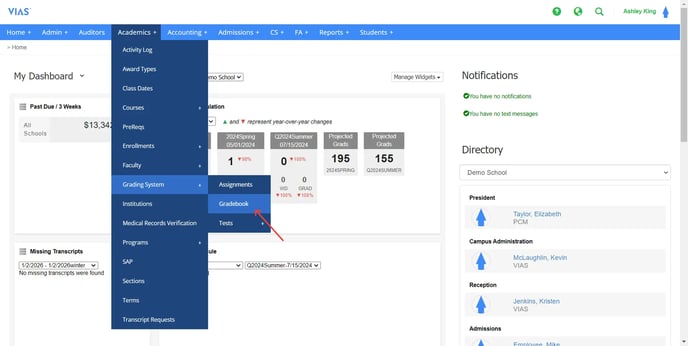
- Go to the Academics Tab > Grading System > Gradebook
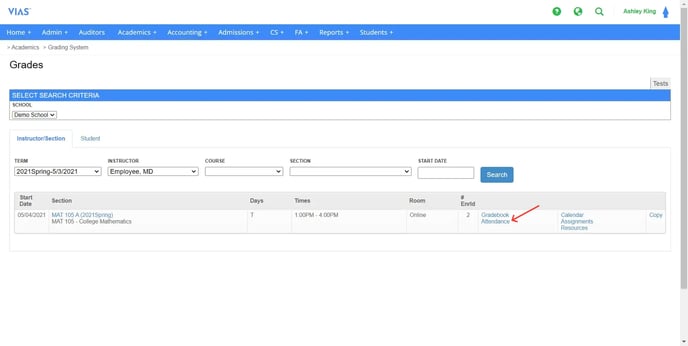
- Search by Term + Instructor OR Term + Course & Section
- Click 'Attendance' next to the desired course
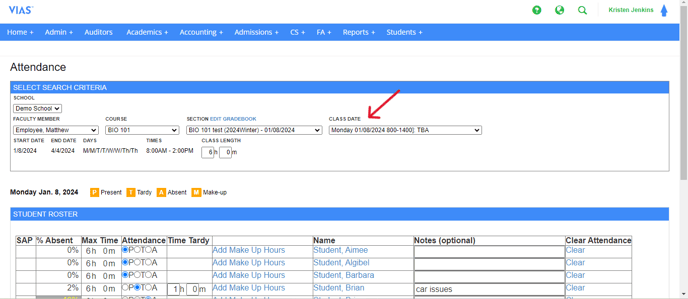
- To switch between attendance dates, select the drop down box labeled "Class Date" in the search criteria box at the top.
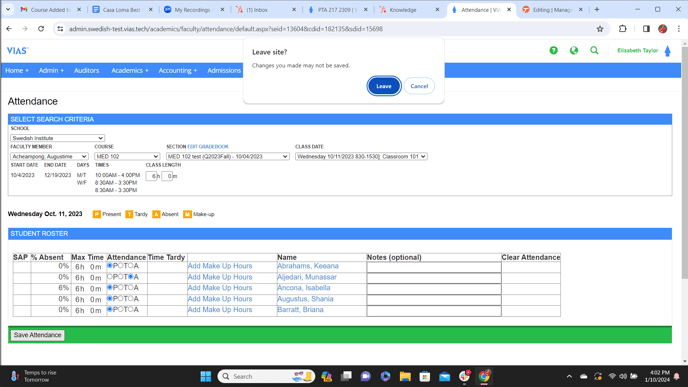
- You will now see your student roster for that date.
- Notes can be entered anytime a student is Tardy or Absent.
- This can help remind faculty why a student was late to class or missed a class. It can also improve communication with Student Services when they are monitoring attendance.
- Mark the student's attendance in the Attendance column.
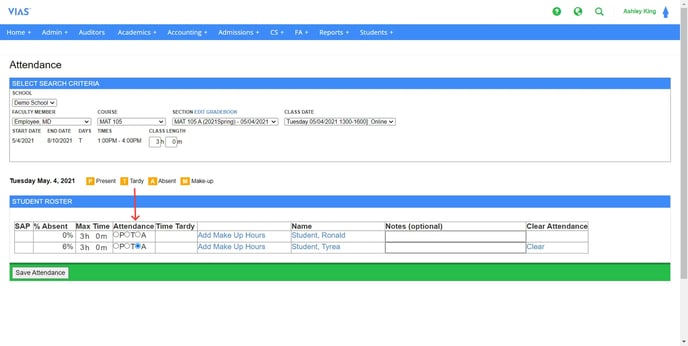
- Click Save Attendance.
- The message shown below will pop up saying, "Changes you made may not be saved."
- Click Leave to save entries. Selecting "Cancel" will not save attendance.
-
Attendance locks at 2 am for the previous day. If any changes need to be made after that time, you can contact the Registrar or Student Services.
English