
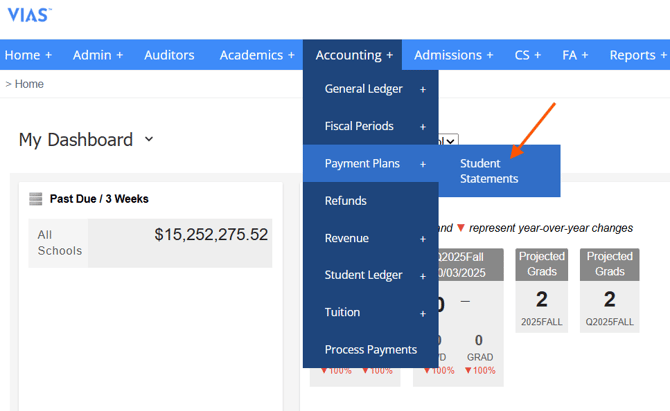
- Navigate to the Accounting tab in the blue navigation bar. Scroll down to Payment Plans + Student Statements
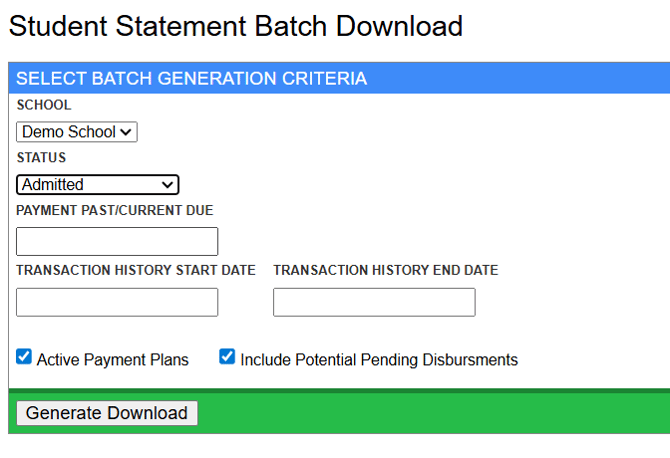
2. Input the needed parameters and click Generate Download
-
- School Selection (This will only apply if you have multiple campuses)
- Status – Choose a specific status or leave a filter blank to populate all.
- Payment Past/Current Due – Date for end of billing cycle
- Transaction History Start Date – Start date of Ledgers items to be included.
- Transaction History End Date – End date of Ledgers items to be included.
- Active Payment Plans – Only Selects Active Payment Plan
- Include Potential Pending Disbursements – Includes any disbursements that have not paid that was set on or before Payment Past/Current Due date
3. PDF batch will generate to print