
- On a lead and/or student page, scroll down on right hand side, under Activities and select Send Message

- Choose to send an Email or Text. Note: Attachments can be sent via email by selecting file up to upload.
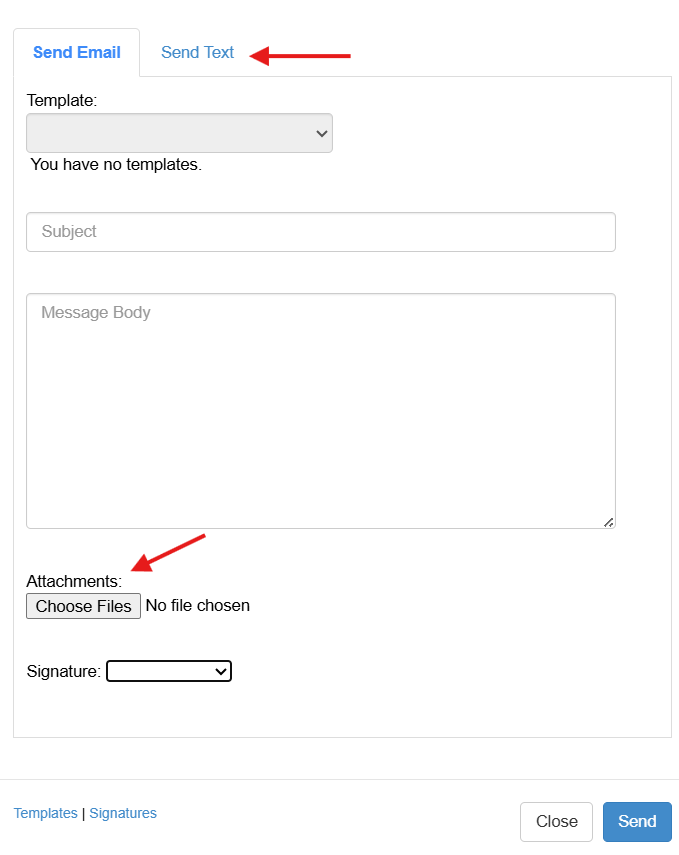
- Type in the email or text to communicate and then click Send
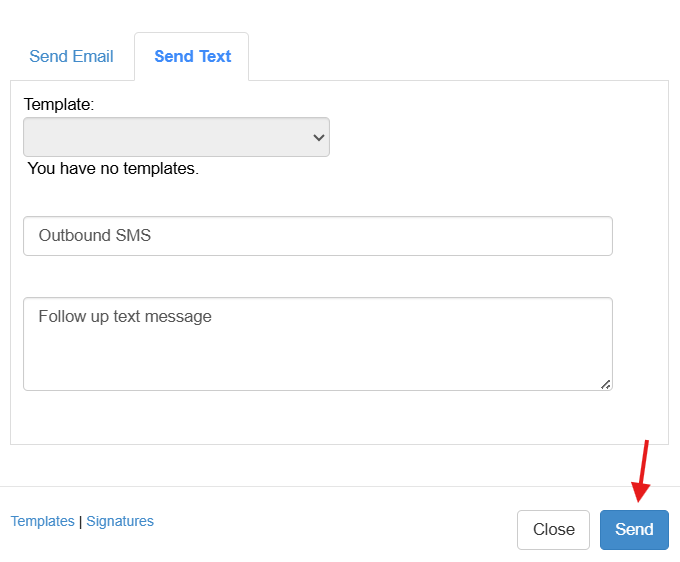
- Mass emails or texts can be sent by including additional students in the recipient(s) field.

Important Note!!! Email and Text Templates
Click here to learn how to create email and text templates.
The following texts are considered special text: ‘, @, >, “ “, &, and in your saved template each will have an embedded code. The student or employee’s email or text will appear as you intended the message to be, however the embedded code will also appear within the activities section on the student or lead page.
For example: The apostrophe embedded code may appear like this in the saved template or within the activities section “Kristen&>23/s” The “&23/s” is the embedded code for the special character apostrophe