- Go to the Academics Tab > Grading System > click on Gradebook
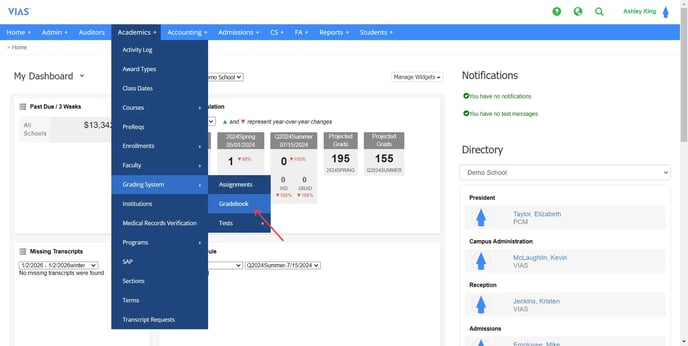
- Select the course you’d like to finalize grades for and click on the blue Gradebook link next to it.
- Once you’ve confirmed all assignments, quiz, test, etc. grades have been entered for each student, select the final letter grade from the drop-down menu next to the student.
- Click on the gray eye next to the student name. This will turn the eye green.
- You will also need to select the appropriate final letter grade from the drop-down menu.
- The grade for that student is now finalized.
- Once the gradebook has locked, only the Registrar will have access to change final grades.
English