NOTE: An Authorized.Net account must be set up before payments can be processed within VIAS.
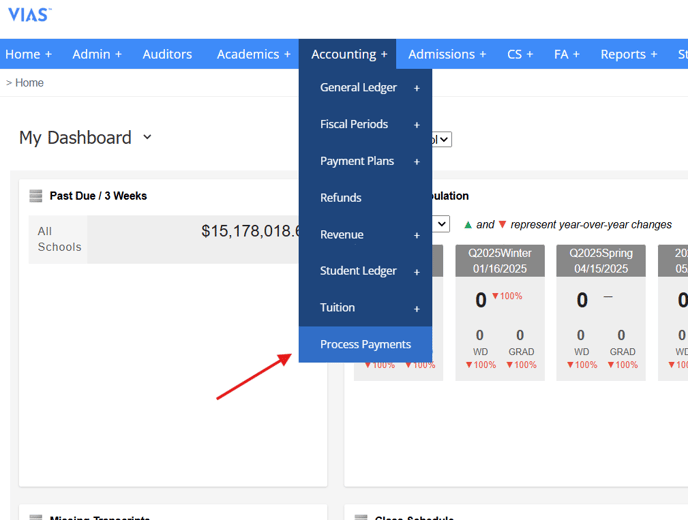
- Navigate to the Accounting tab in the blue navigation bar and click Process Payments
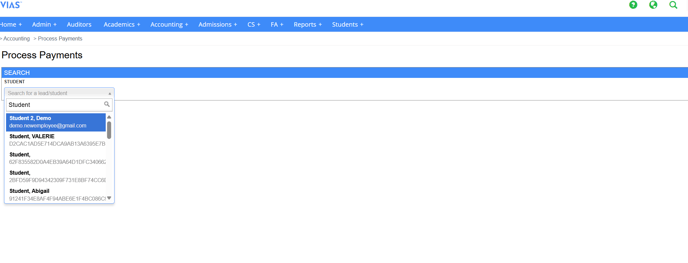
- Input Student Name
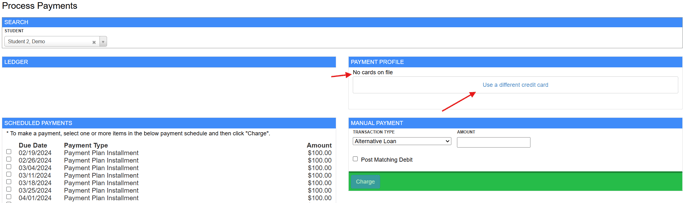
- A Credit Card must be added before a payment can be made.
- To add a Credit Card, click on 'Use a Different Credit Card'
- Input the Credit Card details and click 'Add Card'
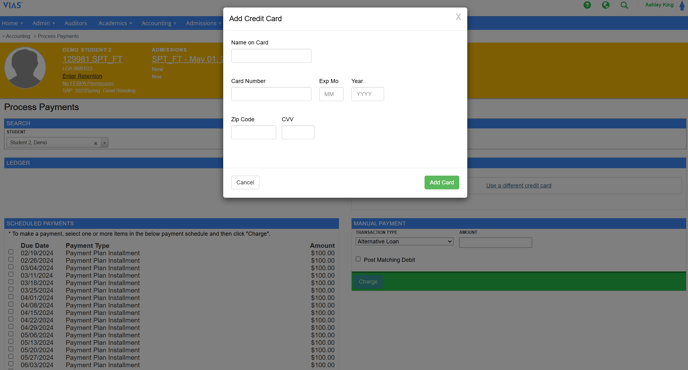
- To add a Credit Card, click on 'Use a Different Credit Card'
- Payments can be processed using one of two methods: Scheduled Payments or Manual Payment
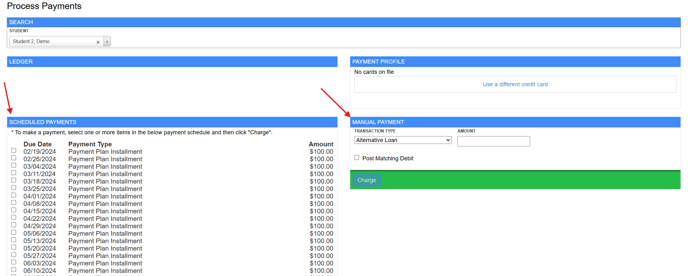
- Scheduled Payments
- These payments are pre-scheduled (anticipated) and established as part of the Student's Payment Plan
- Select the Payment Plan Installment the student will be making and click 'Charge'
.png?width=688&height=402&name=Screenshot%202025-05-19%20145524(1).png)
- These payments are pre-scheduled (anticipated) and established as part of the Student's Payment Plan
- Manual Payment
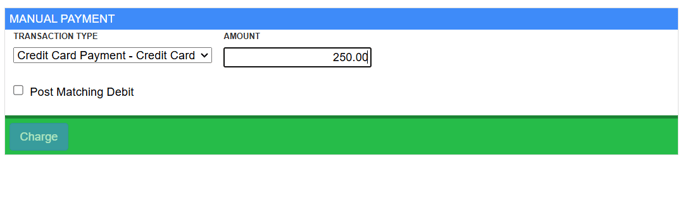
- Select a Transaction Type
- Type in the Payment Amount
- Check the 'Post Matching Debit' box if you want to post a payment and a charge simultaneously
- Click 'Charge