Accessing the Aging Report:
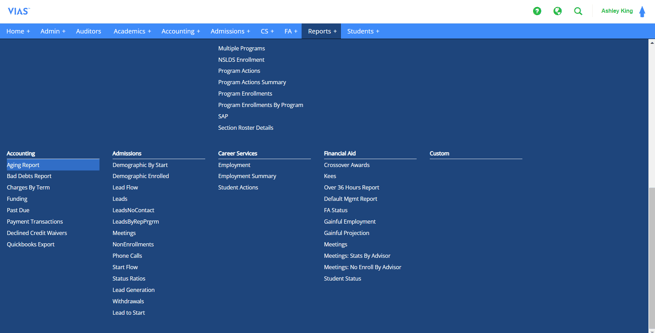
- Navigate to Reports in the blue navigation bar
- Scroll to Accounting and select Aging Report
Running the Aging Report:
- First, you will choose which School you want to run the report for
- Next, input the Report Date (the most common is the current date).
- * Reports ran retroactively will not supply up-to-date information, only balances as of the date entered. Run the report for the current date to return up-to-date information.
- Last, select Generate All or Generate Payment Plans
- Generate All will provide any student who has a balance on their ledger as of the date the report was run.
- Generate Payment Plans will provide any student who has a delinquent Payment Plan Installment as of the date the report was run.
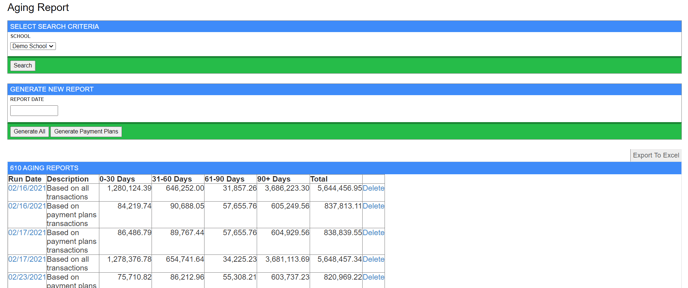
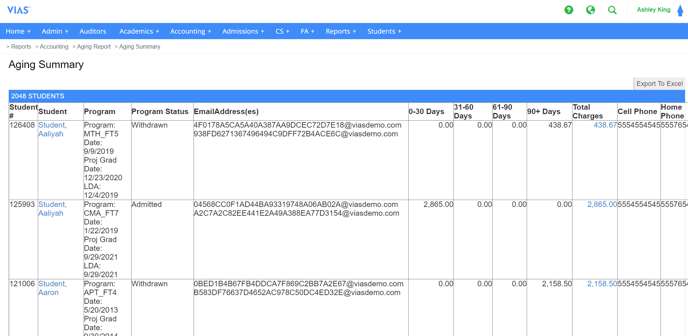
- Both report options (Generate All or Generate Payment Plans) provide information on each student and a delinquency timeline for the balance (0-30 days, 31-60 days, 61-90 days and 90+ days).
- Click on the date of the Run Date of the report to view this information (See below)